How to Make a QR Code for a PDF That Keeps Working
How to make a QR code for a PDF in four steps — and how to pick the host, the error correction and the code type so it still scans a year after printing.
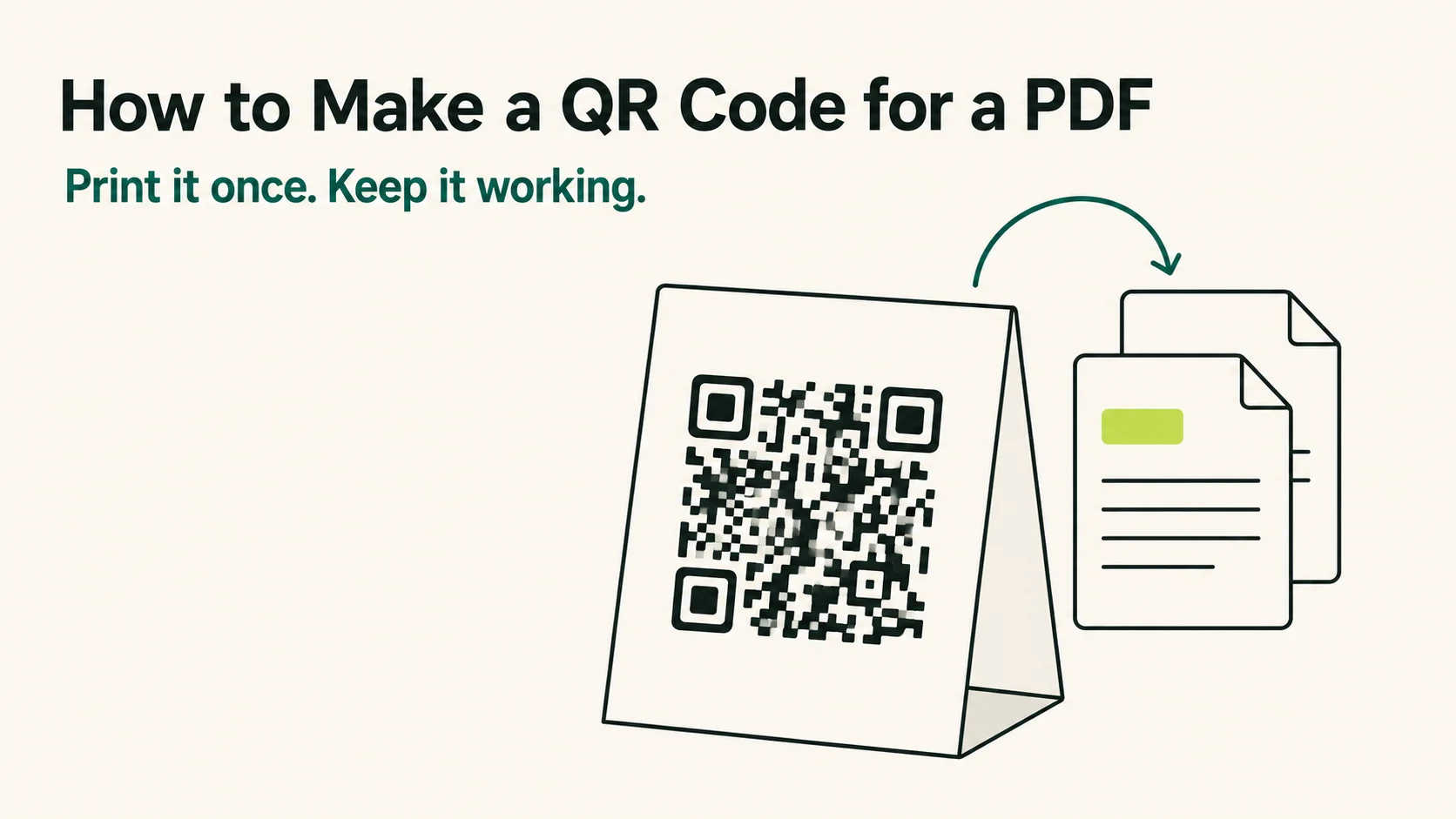
Most guides on how to make a QR code for a PDF stop the moment the image finishes downloading. That is about the halfway point. The half nobody covers — where the file actually lives, who can reach it, and what happens the day it changes — is where every printed code that stopped working went wrong.
TL;DR: Put the PDF on a host that gives it a stable public link, generate a QR code pointing at that link, and make it a dynamic code so the file can be swapped later without reprinting.
Why "put a PDF in a QR code" is the wrong sentence
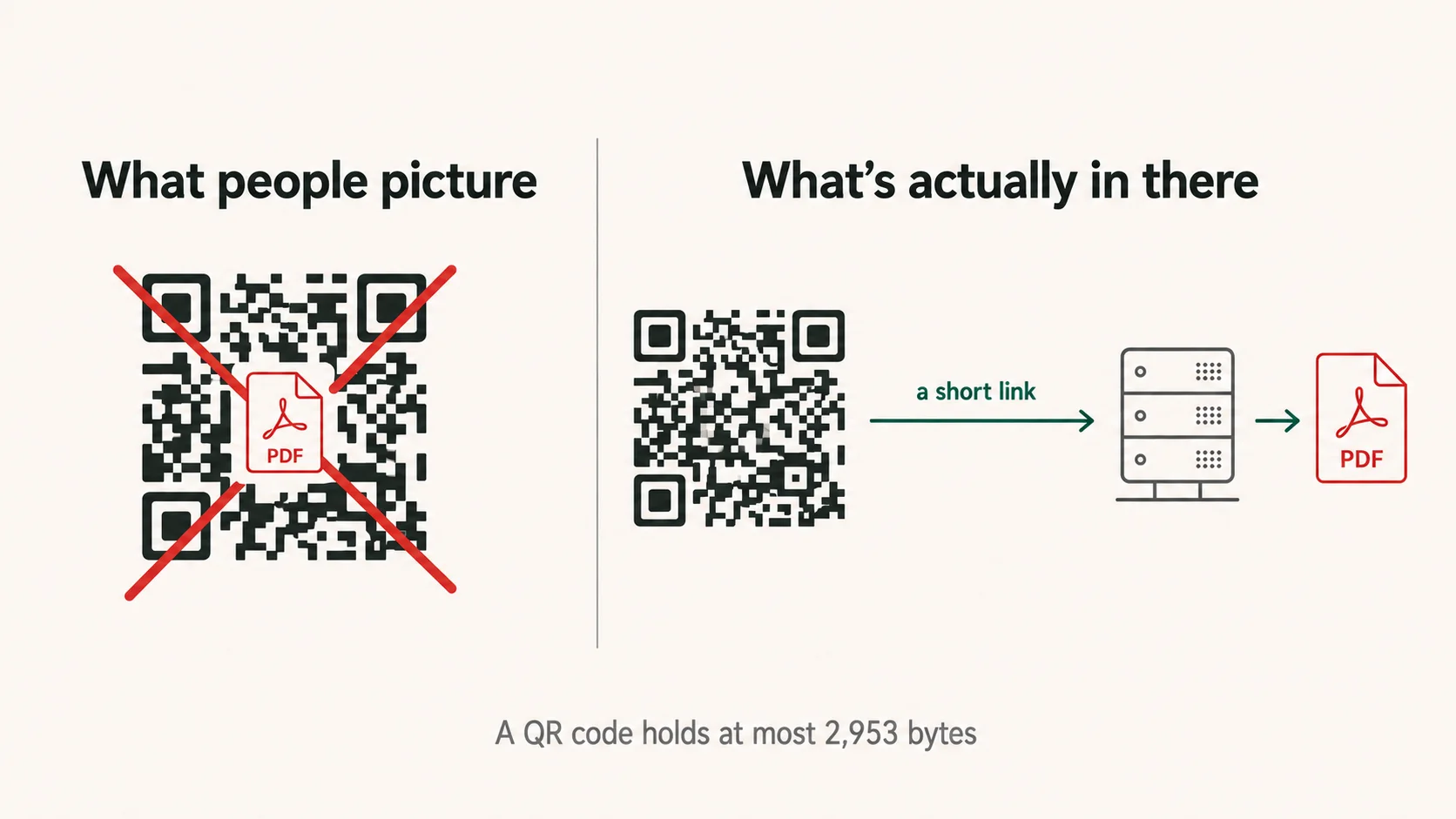
It's the question people actually type, and Google surfaces it as one of the first things others asked. The answer is no, and the reason is arithmetic. A QR code at its largest and least redundant holds 2,953 bytes. A one-page PDF with a logo on it runs 50 to 200 KB. Nothing about the file goes into the square.
What goes in is a web address. The scanner reads a URL, the phone opens it, and a server somewhere decides what to send back — three separate things, and only the first one is printed on your flyer.
So the moment you make a QR code for a PDF you have also picked a host, whether you noticed the decision or not. That one outlives everything else you do here. Ink doesn't rot: a code on a table tent scanned in 2029 decodes to exactly the string it decoded to on press day. What changes is the far end — the file gets moved, a sharing permission gets tightened, an account lapses, a free plan turns out to have been a trial.
This site exists because of that asymmetry. The code is permanent the moment it's printed. The address at the other end is only permanent if somebody sets out to make it so.
The four steps, and the one that decides everything
1. Decide where the PDF will live. This step determines the other three, and it has three realistic answers.
- A cloud drive — Google Drive, Dropbox, OneDrive. Free, familiar, and what the top Reddit thread on this question recommends. It also wraps your document in a preview page with a download button between the scan and the content, can show the file owner's name to whoever opens it, and hands you a dead code if you ever delete and re-upload instead of using "Manage versions".
- Your own server — total control, and you now own the uptime, the certificate, and the discipline never to reorganise that directory. No scan data of any kind.
- A PDF QR host — file and short link handled together. The only arrangement of the three that lets you change the document later without changing the code.
2. Generate the code against that link. Upload the PDF, or paste the URL if you're hosting it yourself. Here the upload is the whole step: no account, and the code renders while you're still reading this sentence.
Worth stating what that costs, because it isn't unconditional. A code made without an account expires 7 days after it's created. A week is sized for the actual job, which is not just making the code — it is sending it and having someone open it at the other end, and that is rarely the same afternoon. Creating a free account inside that window turns the same code permanent, same short link, nothing to reprint. Better you read that here than discover it on Thursday.
3. Set error correction and size for the print you're doing. The next section covers the trade in full. Short version: for anything going on paper, go high.
4. Test-print, then scan it from where people will be standing. Not from 20 cm away on your desk. A code that reads on a monitor and fails on a window card at three metres has failed, and paper is the only place you find that out.
Step 2 is where this category tends to break its promises, so in August 2026 we walked the four services that own this keyword the way a first-time visitor would — real browser, no account, one test PDF. Three of them stopped us before we could download anything: two at the download button, one before the code had even generated. Worth knowing before you spend twenty minutes styling a code you can't keep.
What you can change about the code itself
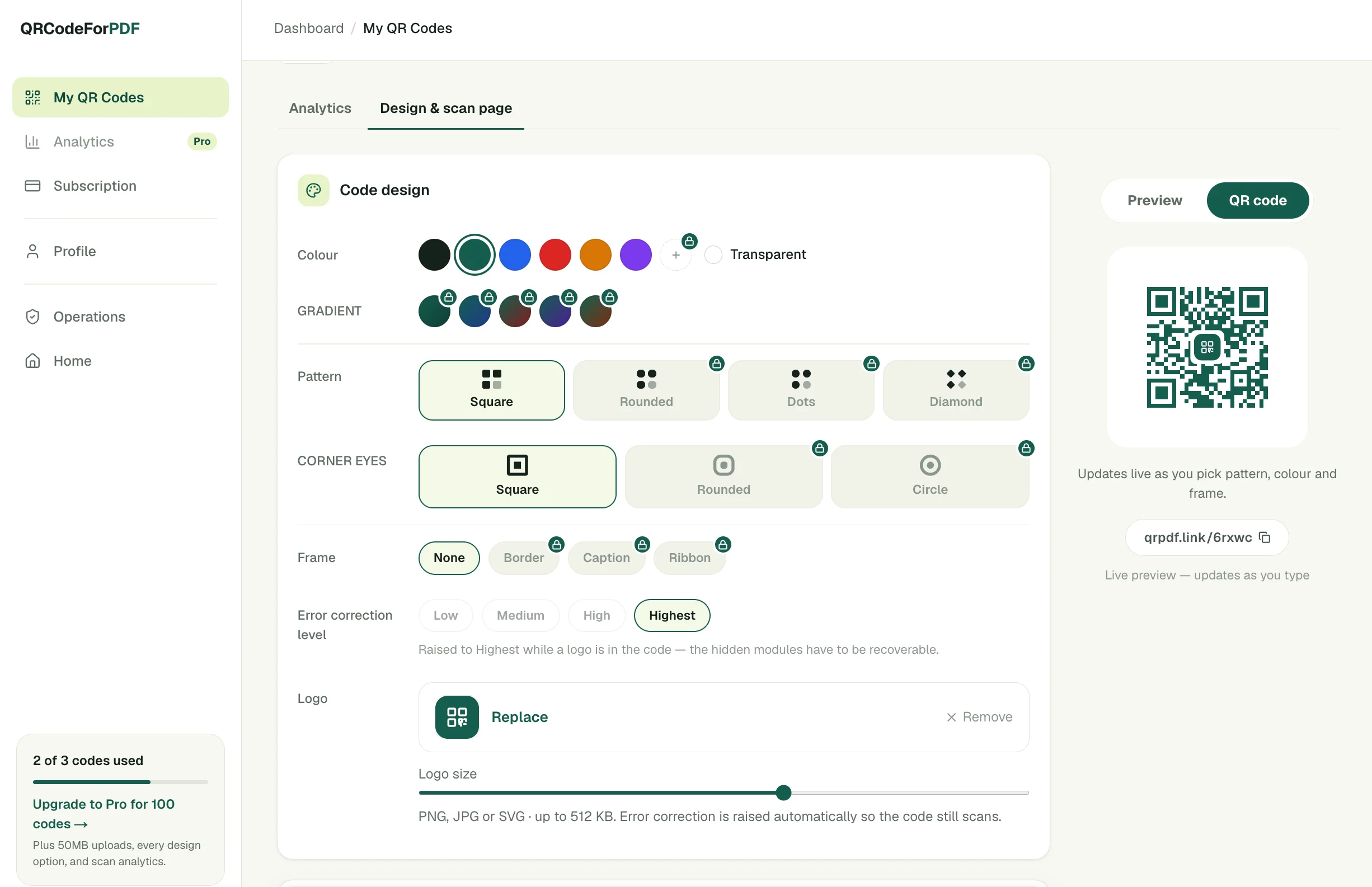
The code. Four module patterns — square, rounded, dots, diamond. Three finder-eye shapes. Four frame styles, including a caption frame that prints something like "Scan for the menu" underneath. Foreground and background colour, a transparent background for printing onto stock that isn't white, and a two-tone gradient. A logo in the middle. Four error-correction levels. Export as PNG or SVG at 512, 1024 or 2048 pixels — SVG whenever a printer is involved, since PNG rasterises once and printers scale.
One of those isn't a free choice. Putting a logo in the middle means deliberately deleting the modules underneath it, and those modules have to be recoverable from somewhere, so adding one pins error correction to H and greys the picker out. A code that photographs beautifully and doesn't scan isn't a design option worth offering.
The page a scan lands on. By default a scanner sees a short cover before the document: company name, a title, one line of description, a button whose label you set, a link back to your site, and two colours of your choosing. It's there because a bare PDF URL tells someone holding a phone nothing about what they're about to open. If you'd sooner skip it, one switch sends the scan straight into the file.
What costs what, since a feature list without its gates is just a sales page. Colour and error correction are free on every tier, the anonymous one included — gating error correction would mean charging for a code that scans. The logo is free too, but it needs an account. The other module patterns, the eye shapes, the frames and the gradient are Pro, and the pricing is one page.
The honest limitation, while we're on it: without an account you get the plain square and no frame. That's the main thing an anonymous code gives up, alongside the 7-day clock.
The problems that show up after you print
The file changes and the paper doesn't. Menu prices move. An event schedule isn't final until the morning of. A manual gets a revision three weeks after the boxes have shipped. A static code — one with the destination baked in — is finished at that point, and the only answer left is a reprint.
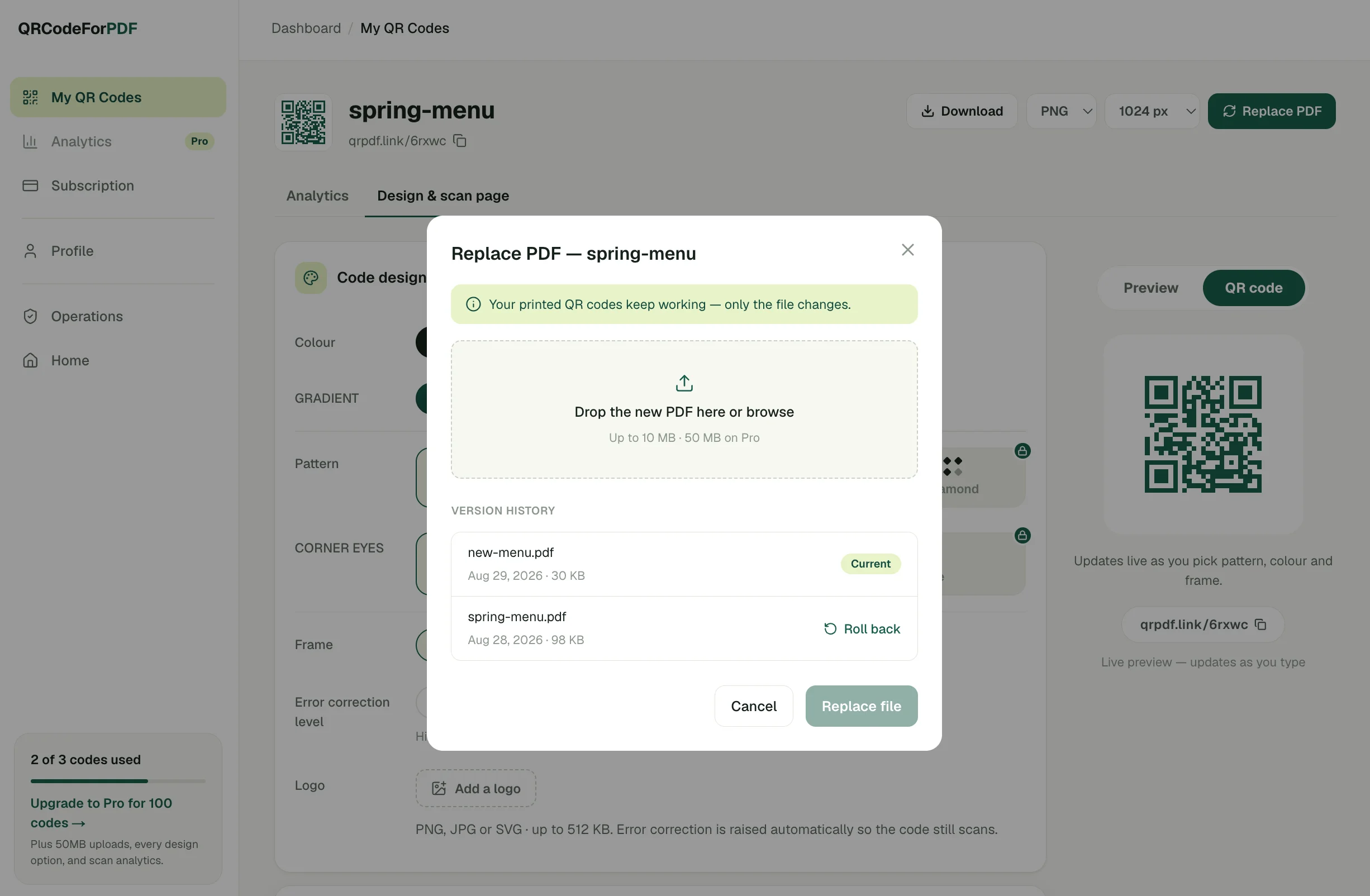
A dynamic code isn't finished. The printed code points at a short link, and the short link points at whatever file you last put behind it. Replacing the PDF is free on every plan here, the free one included, and every earlier version is kept, so a wrong upload is one click to undo. That property is the entire reason this category exists, and it's the last place to economise.
No way to tell whether the print worked. Two hundred flyers out, and nothing coming back. Every plan gets a scan count and a day-by-day curve — 90 days of history on free, a year on Pro. Pro adds where the scans came from, what device, and how far into the document people read, which answers something a print run never can: they opened it, but did they get past page one?
Somebody else monetising your customers. A few free QR services pay for themselves by showing an ad page to whoever scans — your customer, in your shop, looking at a printed thing you paid for. That happens on no plan here, free included. It's less a feature than a line we decided not to cross.
The asterisk, once more, because it's the only one: codes made without an account expire after 7 days. Codes attached to an account don't expire at all — no trial clock, no expiry date, and the free plan's 3 codes stay live indefinitely. A saved code stops only if you delete it, or if a subscription lapses while you're holding more codes than the free plan covers.
What I can't tell you is which QR host will still be resolving short links in ten years. Ours is new. Nobody in this market can answer that honestly, and if a printed code has to outlive that uncertainty, the fallback is a sheet of stickers with a fresh code over the old ones. Unglamorous, and it works.
The generator is the least consequential choice in any of this. What matters is the address you print and whether it's still yours in two years. Settle that and the rest is four steps and a test print — and if the document is one that moves, a menu or a price list or a programme that isn't final until the morning of, start with a dynamic code so the decision is behind you before anything goes to press.